Kimberly: A Fluid Handwritten Font Worth Understanding Before You Use It
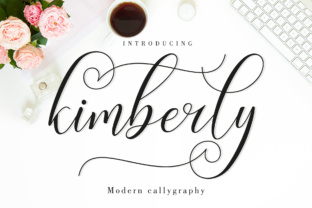
If you’ve ever searched for a handwritten font that feels fresh each time you use it, you’ve probably come across Kimberly. This fluid handwritten typeface features more than 560 unique glyphs, which means every word can look slightly different depending on which alternates or ligatures you activate. That versatility alone makes it an attractive addition to any design toolkit. But owning a font with that many options also introduces challenges that many users overlook. Whether you’re a casual creator, a small business owner making social media graphics, or a seasoned designer, understanding how to work with Kimberly will save you time, frustration, and mediocre results.
Why a “Unique Every Time” Font Isn’t Automatically Better
It’s easy to assume that a font with hundreds of glyphs will automatically make your projects stand out. In reality, more options doesn’t always mean better design. The real value of Kimberly lies in how you control those options. Many beginners install the font, type a sentence, and see the same default letters repeated, missing the very feature that makes Kimberly special. The mistake isn’t buying the font—it’s failing to take advantage of the OpenType features that let you swap in alternate characters, connect letterforms with ligatures, and create a genuinely handcrafted feel.
The result of ignoring these features is a monotone look that could have been achieved with any basic handwritten font. You end up paying for a premium tool but using only a fraction of its potential. If you’ve felt disappointed after purchasing a font like this, the issue is usually not the font itself, but the gap between what it offers and how you apply it.
Overlooking the Glyph Panel: The Most Common Oversight
Many people don’t realise that a font’s glyph panel is where the magic happens. In applications like Adobe Illustrator, InDesign, or even more advanced word processors, you can open the glyphs panel and browse through all of Kimberly’s alternates. The 560+ unique glyphs include multiple versions of the same letter, swashes, and ending flourishes. Yet I regularly see users type “Hello” and never bother to replace the default “e” with a more elegant alternate, or add a flourish to the final “o.”
This oversight makes your work look like everyone else’s who uses the same font without customisation. If you’re using Kimberly for branding, invitations, or social media headers, failing to personalise the letterforms means missing the chance to create something that feels yours. The fix is simple: after typing your text, open the glyph panel and manually swap in alternatives for key letters. It takes an extra minute or two, but the difference in quality is immediate.
When Swapping Glyphs Becomes Counterproductive
There is also a subtler mistake—over-alternating. I’ve seen designs where every single letter is a different alternate, making the text look chaotic and unnatural. Because Kimberly is a fluid handwritten font, it works best when the alternates feel like natural variations a human hand might produce. Use too many extreme swashes in the middle of a word, and readability suffers. A better approach: alternate only one or two letters per word, or use the default set and then swap only the first and last letters for a more organic rhythm. Balance is key.
Assuming Handwritten Fonts Work for All Content
A fluid, personal font like Kimberly can be tempting to use everywhere—headlines, body text, even long paragraphs. That is a mistake that affects readability and professionalism. Handwritten fonts are generally less legible at small sizes, and Kimberly, with its variable stroke widths and occasional flourishes, is no exception. Using it for body copy below 14 points can strain the reader’s eyes, especially on screens. I’ve seen blog posts set entirely in Kimberly where the content was genuinely interesting, but the typography made it exhausting to read.
This doesn’t mean you can’t use Kimberly in text-heavy projects. It means you need to use it intentionally—for short phrases, pull quotes, headings, or decorative elements. Pair it with a clean, neutral sans-serif or serif for the body text. For example, a wedding invitation might feature the couple’s names in Kimberly and the ceremony details in a simple geometric sans. The contrast makes both fonts shine.
Ignoring Context: Size, Background, and Colour
Another overlooked detail is how a handwritten font interacts with its background and the space around it. Because Kimberly has a fluid, casual stroke, it can get lost on busy backgrounds or clash with overly complex imagery. I’ve seen a beautiful quote set in Kimberly placed over a textured photograph, only to become impossible to read. The mistake here is thinking the font will stand out on its own. Handwritten fonts often need breathing room—light plain backgrounds with enough padding.
Also, colour choice matters more with a font like this. Since the letterforms have uneven thickness, light colours on a bright background can wash out the strokes. Darker, saturated tones tend to work better and preserve the hand-drawn feel. If you’re printing, consider that thin flourishes may not reproduce well at small sizes; test a sample before committing to a run of business cards or invitations.
The Licensing Illusion: What You Actually Get
Font licensing is often the least exciting part of a purchase, but overlooking it can lead to expensive mistakes. Kimberly, like many quality fonts, is sold under specific licenses. Some versions allow you to use it in unlimited personal and commercial projects, others restrict the number of installations or require an extended license for embedding in apps or ebooks. I’ve encountered freelancers who bought a cheap version from a marketplace, only to later find they couldn’t use it in client logos or merchandise without paying extra.
Before you download or buy Kimberly, check the license terms on the site you’re purchasing from. Look for details about number of users, whether it’s royalty-free for commercial work, and if the license covers web embedding. A small extra cost upfront for the right license can save you legal headaches and redesign costs later. When in doubt, contact the foundry directly; they are usually helpful in clarifying use cases.
A Note on Free Versions vs. Full Versions
Some sites offer free “demo” versions of fonts like Kimberly that include only a subset of characters. You might get the basic alphabet but none of the alternates, ligatures, or extended punctuation. That defeats the purpose of choosing a font with 560+ glyphs. If you see a free download promising Kimberly, confirm it includes the full character set. Otherwise, you’ll be stuck with a limited version that doesn’t deliver the fluid, unique look you were after. The better move is to invest in the complete font from a reputable font foundry or trusted marketplace.
Failing to Test Cross-Platform Compatibility
Another practical frustration arises when you install Kimberly on your computer and it looks perfect, but the person you send the file to sees a fallback font. This happens when fonts are not embedded in PDFs or when the document is opened in an application that doesn’t support OpenType features. If you’re collaborating with others, always convert your final designs to PDF with fonts embedded, or outline the text in vector applications. For web use, ensure you’re using the correct web font format and that the hosting service supports alternate character rendering through CSS OpenType features. Testing on multiple devices before finalising a project can prevent last-minute surprises.
Practical Advice for Getting the Most Out of Kimberly
Now that we’ve covered common pitfalls, here is a straightforward approach that works for most users. First, know your software: applications that fully support OpenType features—like Adobe Creative Suite, Affinity, or even some advanced word processors—will let you access the glyphs. Second, before you start your project, spend ten minutes exploring Kimberly’s character set. Note which alternates you like, and save a text file with a few common words and the alternates you prefer. That becomes a personal reference.
Third, apply the font with intention. For a logo, choose a single word and customise two or three letters. For a header, use the font at a large size (36pt or above) and consider adding a subtle shadow or gradient to emphasise the hand-drawn texture. For social media quotes, keep the text short—three to five words—and let the fluid strokes be the visual hero. Finally, pair it with a reliable body font that provides contrast. Good combinations include clean sans-serifs like Montserrat, Poppins, or a simple serif like Lora.
What to Check Before You Commit to Using Kimberly
Before you download or purchase, ask yourself these questions. What kind of projects will this font go into? If it’s mostly headlines and short phrases, Kimberly is an excellent choice. If you need a full-body typeface, you’ll want something else for paragraphs. Do you have the software to access the full glyph set? If you’re limited to basic word processors, many of the alternates will be hidden. Are you prepared to spend time customising each project? That manual effort is what makes results look unique, but it also means you won’t get that “unique every time” effect by simply typing.
Another check: read reviews from other designers. Look for comments about how the font performs in print vs. screen, and whether the foundry provides good documentation. Good foundries often include a PDF showing all glyphs and ligatures; that can save you endless clicking in the glyph panel. Finally, make sure you have a backup plan—if the project requires handoff to a client who may not have the font, consider using a simpler handwritten font that works without alternates, and reserve Kimberly for pieces you control fully.
Kimberly is more than just another handwritten font. Its 560+ unique glyphs give you the ability to create genuinely one-of-a-kind designs—when you use them correctly. By avoiding the common mistakes of ignoring alternates, overusing the font in the wrong contexts, skipping licensing details, and neglecting to test formats, you’ll get the quality and uniqueness you’re paying for. The font itself is a tool; the craft comes from understanding how to make it work for each specific project. With a little preparation and a willingness to customise, you can achieve results that feel as personal as a handwritten note, but polished enough for professional work.